Integrations
Discord
Sell access to your Discord community by granting roles automatically after purchase. Entora keeps membership in sync by revoking the role when an entitlement is deactivated or expires.
Create a new entitlement#
Steps to create a new entitlement once setup is complete.
- 1
Create a new Discord entitlement
Click the "New Discord Entitlement" button on the entitlements page
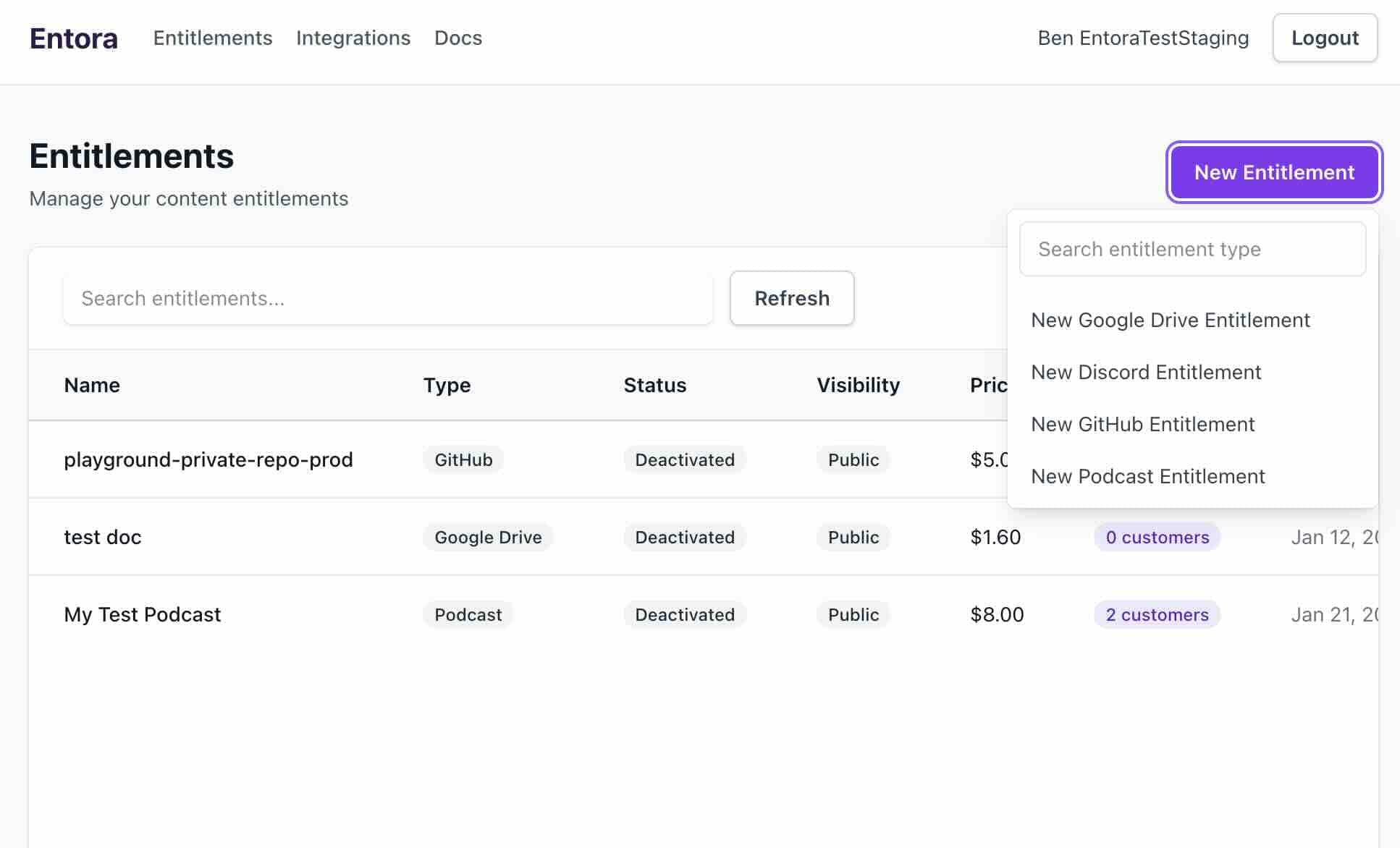
Start a Discord entitlement from the Entitlements page. - 2
Add/Choose Discord server
If you have not added the Discord server yet, you must add it. If this is your first server, click the "Add server" button. If this is not your first server, click the "Add another server" button.
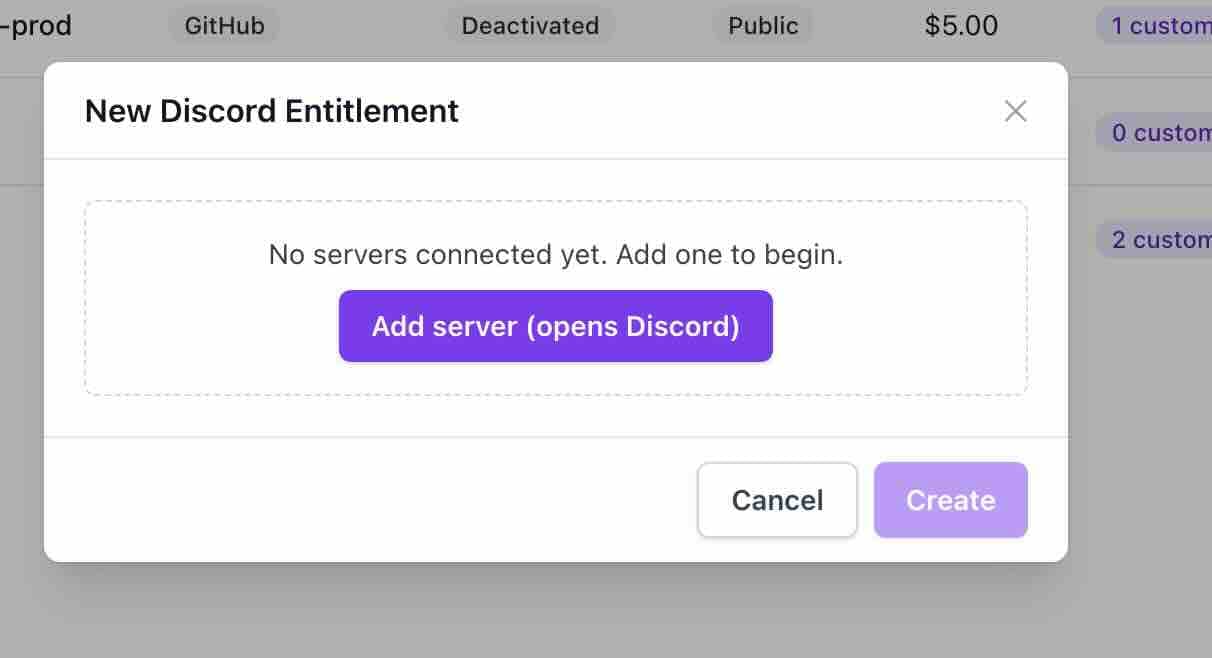
Add your first server to continue. 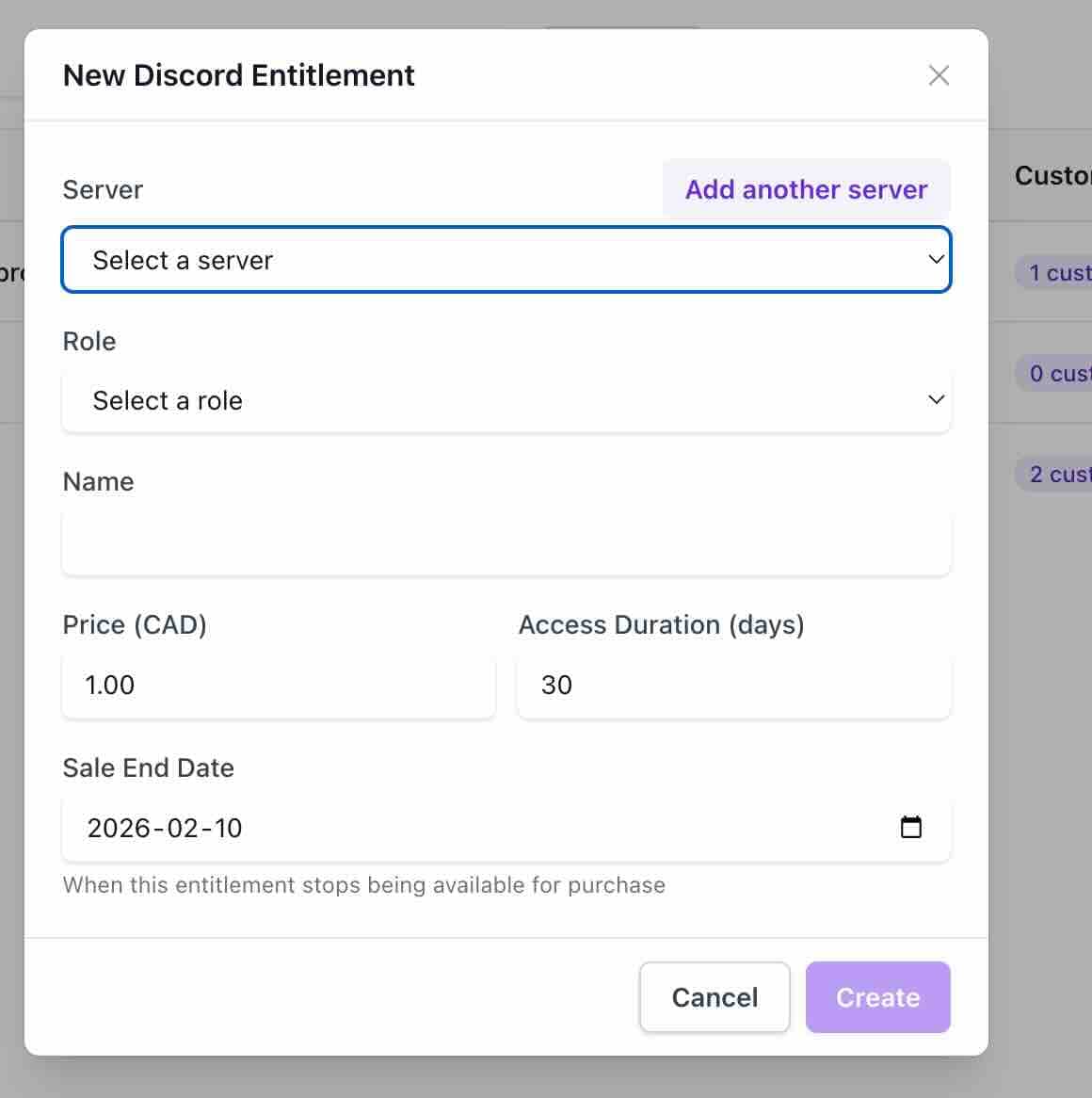
Add another server if needed. - 3
[IMPORTANT] Ensure the Discord bot role is above all roles you wish to grant.
By default, the Discord bot will not have permission to grant access to all roles. When you add your server, go to Server Settings > Roles. Drag the Entora integrations role to the top and save.
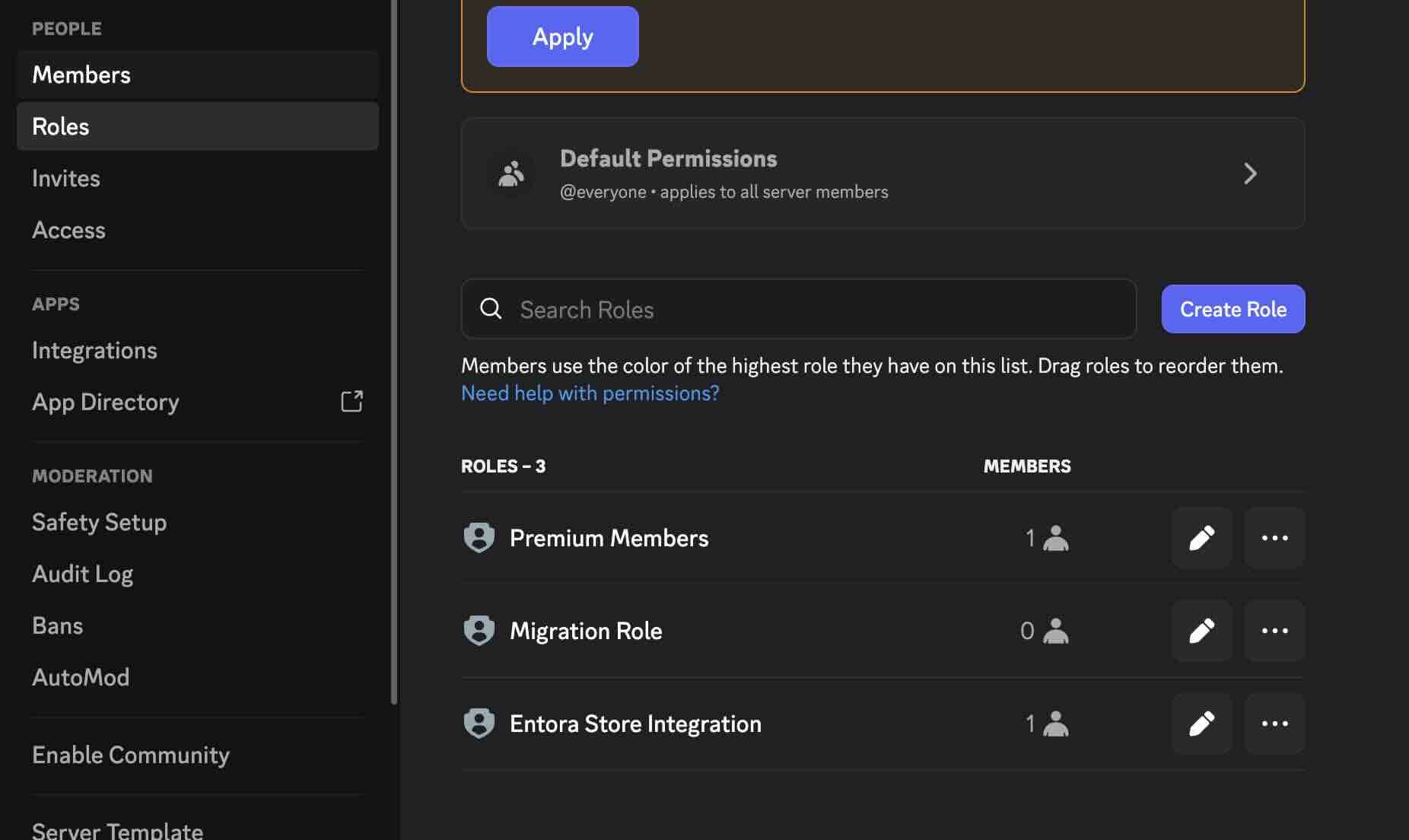
Open the roles page in Discord settings. 
Confirm the Entora role is above paid roles. - 4
Enter entitlement details
Enter the entitlement details. Choose the desired server and the role you wish to grant access to. These will be automatically shown in the dropdown. Set a name for the entitlement, a price, access duration, and sale end date. Click "Create" to finish. You will be sent to the page for the entitlement.
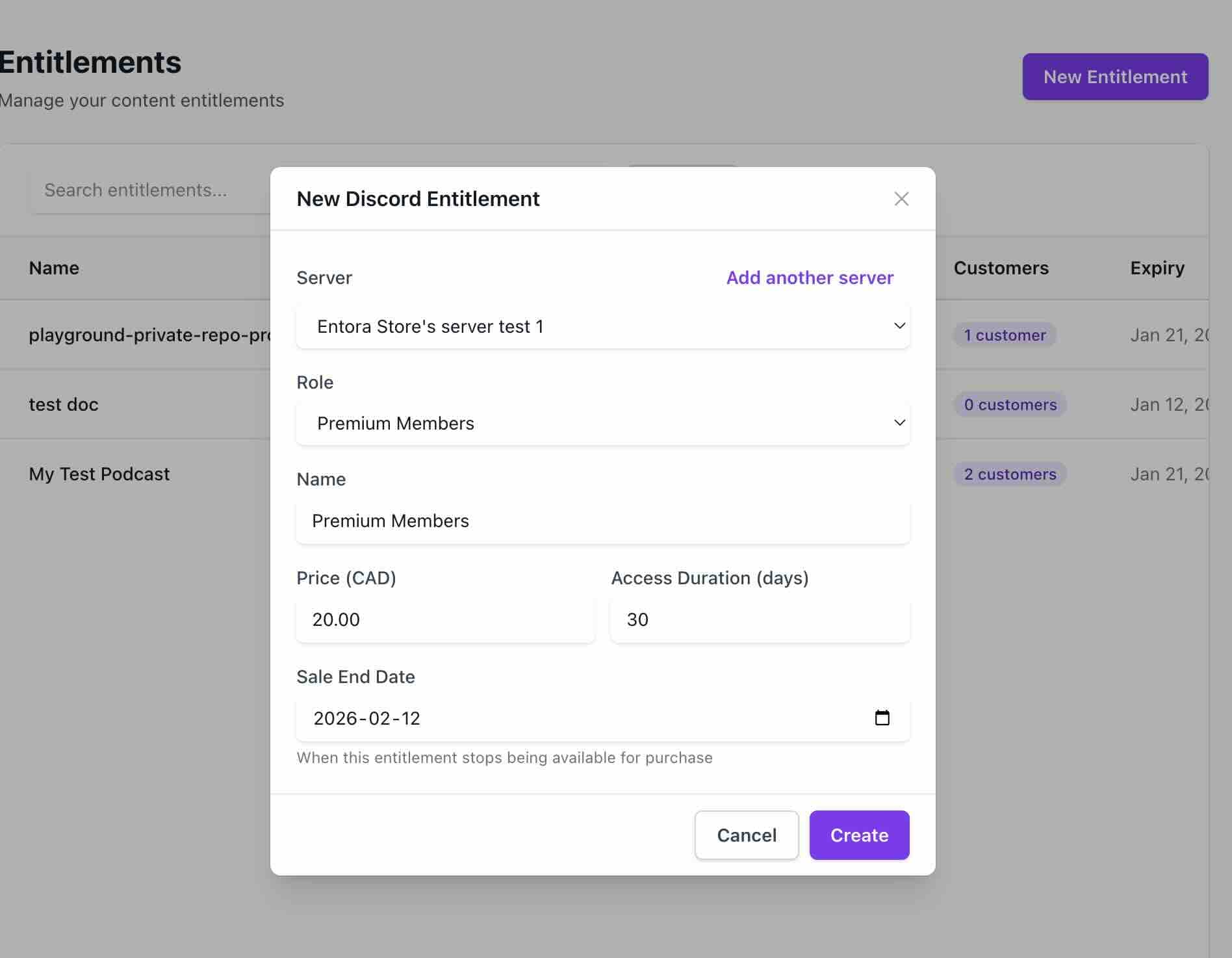
Fill in the Discord entitlement details. - 5
Discord roles channel
We will automatically create a roles channel in your server, that is updated whenever you add/remove entitlements.
Fill in the Discord entitlement details. - 6
Confirm the roles channel message
Verify the message shows the roles customers can purchase.
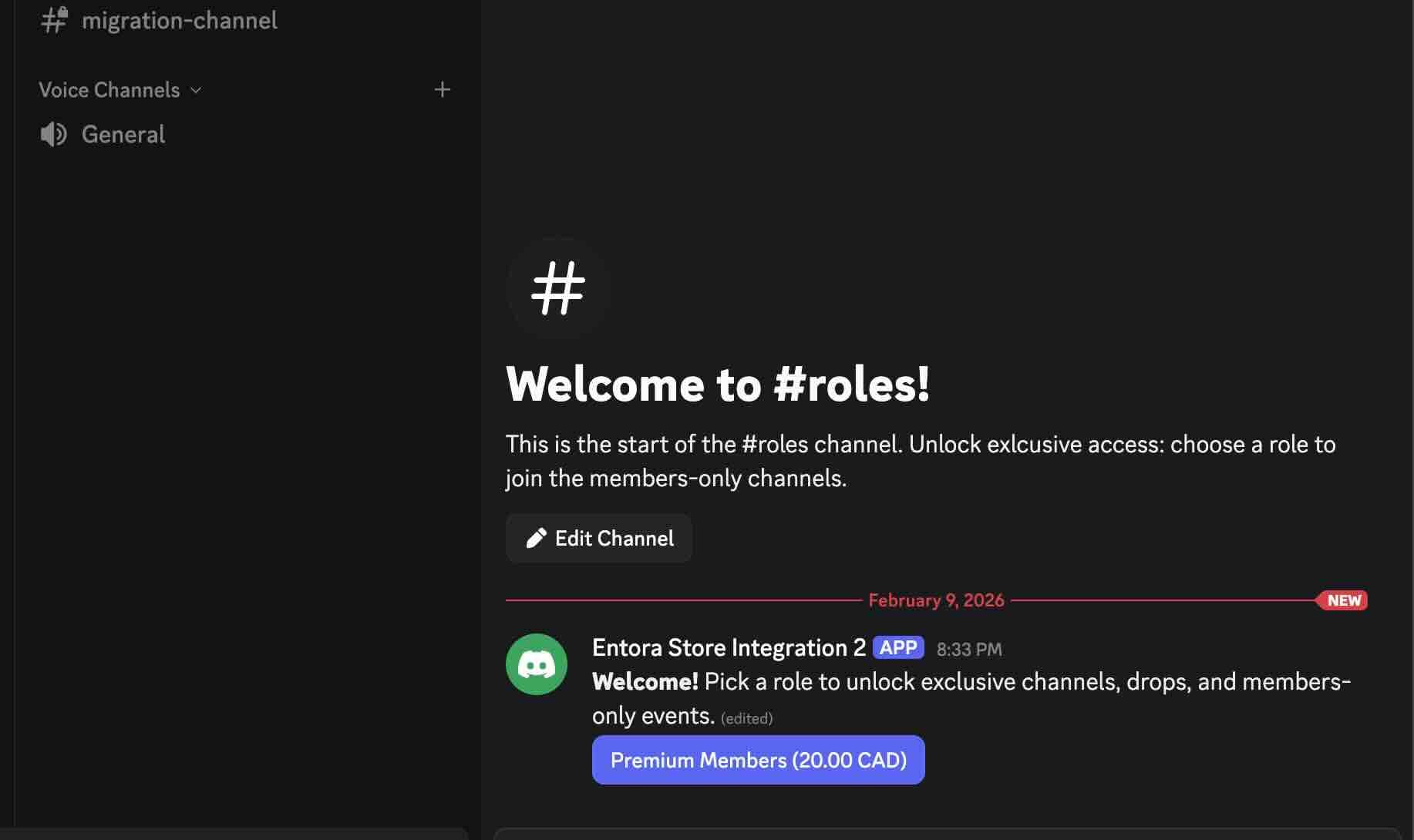
Customers select a role from the message in Discord.
Customer flow#
Steps that a customer takes to purchase your entitlement.
- 1
Request a role
Click a button in the roles channel to request a role. You will be sent a DM to purchase the role.
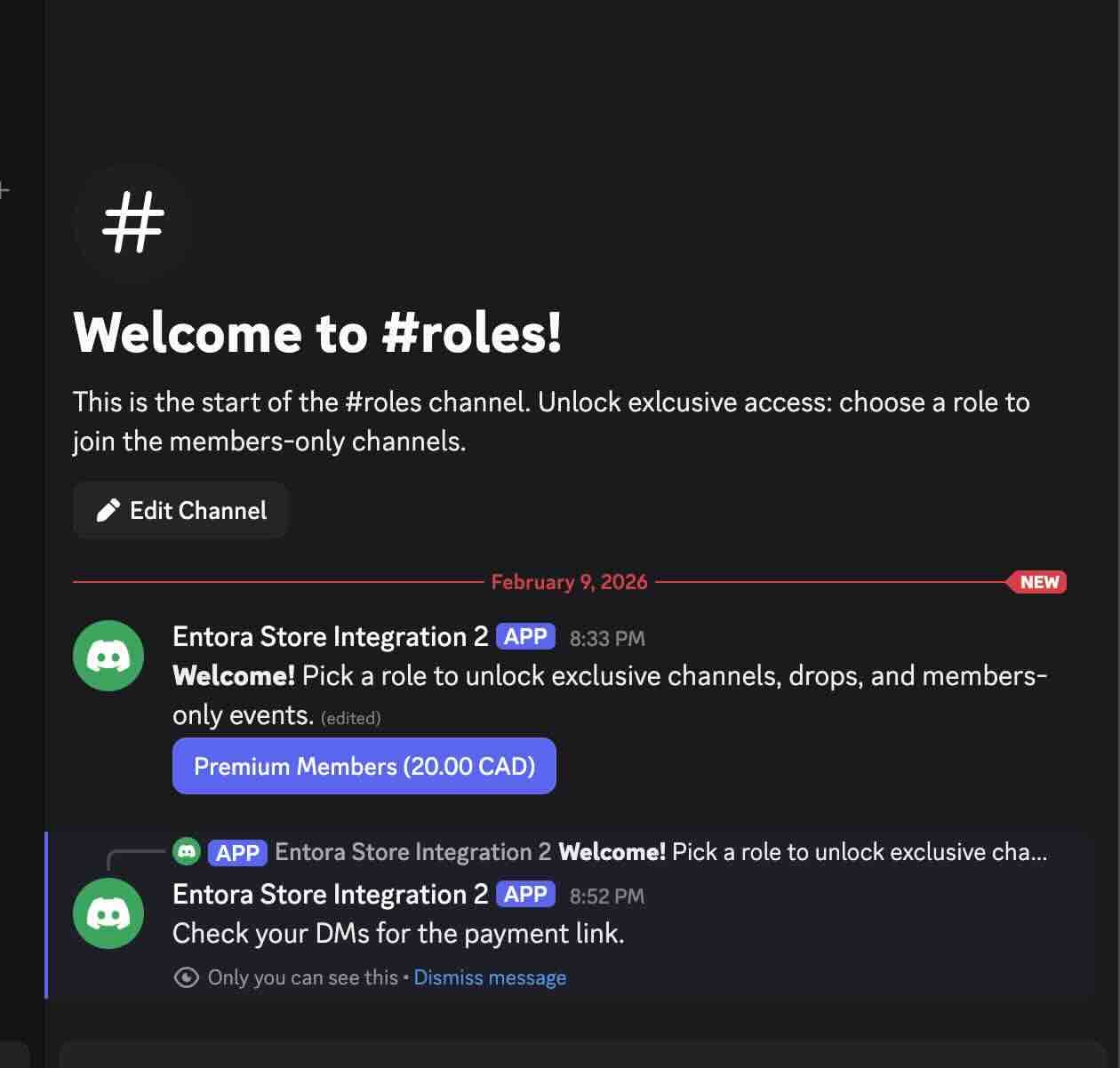
Customers request a role and receive a payment link. - 2
Visit the checkout link that was DMed to you
Verify the details of the DM are correct, and visit the checkout link.
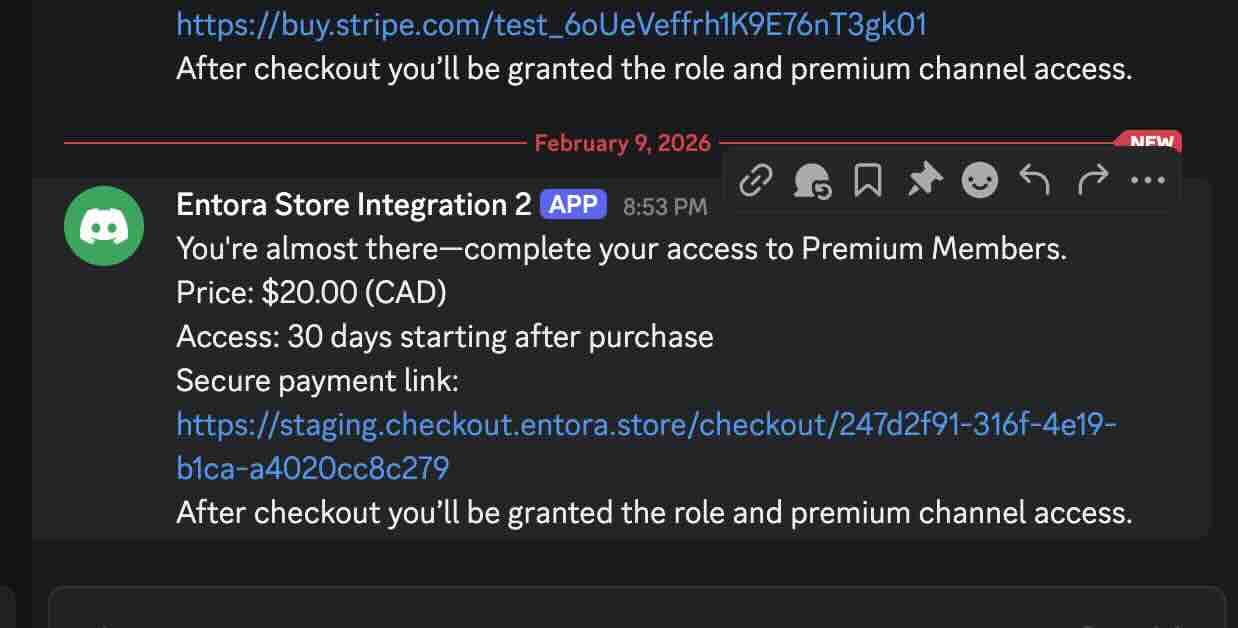
Customers receive a DM with the checkout link. - 3
Proceed through payment.
Proceed through the Stripe payment.
- 4
Enjoy access!
You will now be granted access to all permissions of the role you paid for.
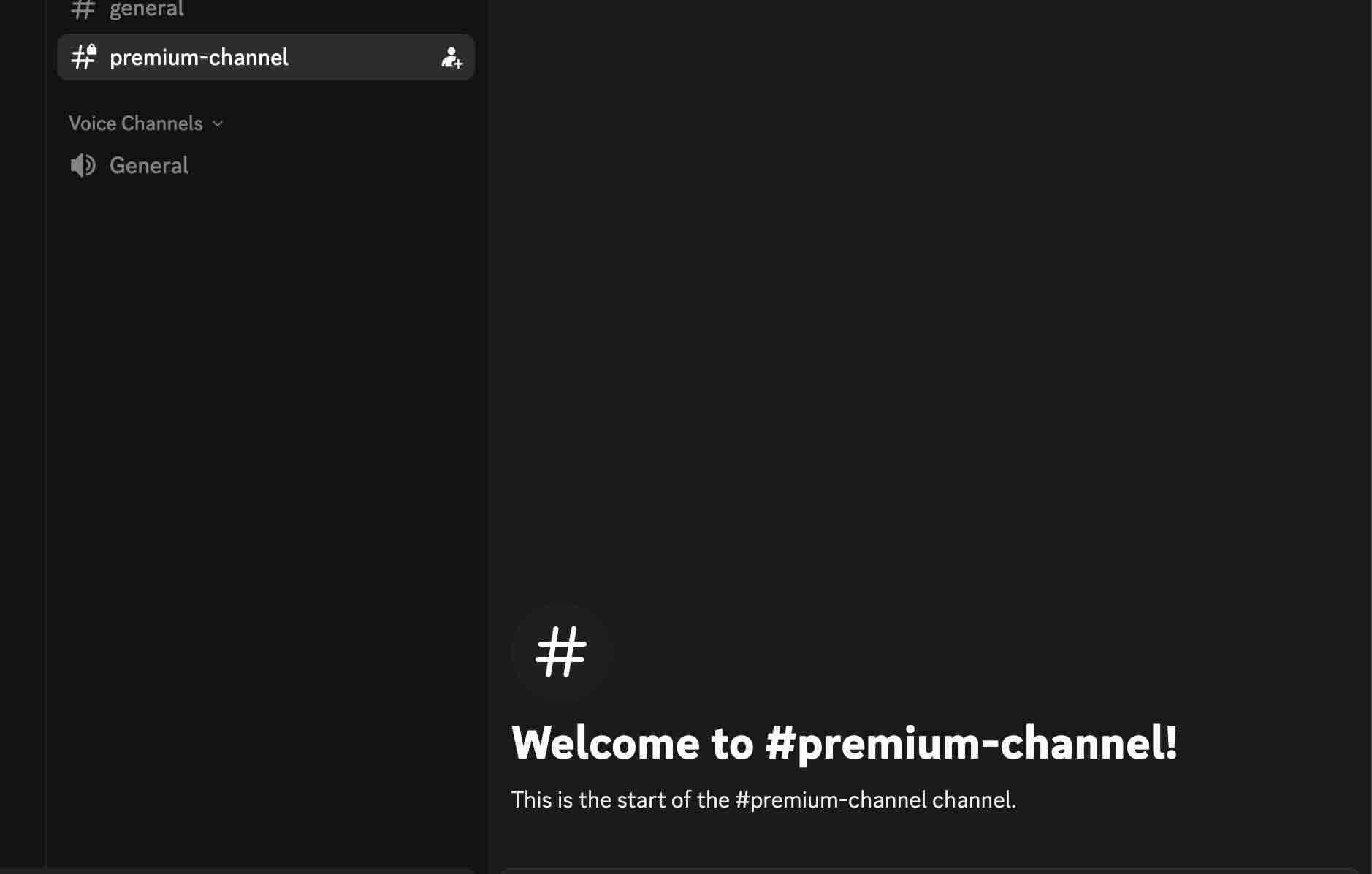
Customers can access the premium channel after purchase.